Before you start
Who can use this feature
Starter, Professional, Education, Organization, Government, and Enterprise plans
Requires an MCP client listed in the Figma MCP catalog
The Figma MCP server brings Figma into your AI workflow. It gives AI agents the design context they need to generate code from your Figma files, and lets agents write native Figma content back to the canvas.
MCP servers use the Model Context Protocol, a standard interface that lets AI agents interact with data sources.
Note: This guide is a high-level overview of the Figma MCP server. For setup instructions and example prompts, see:
What you can do with the Figma MCP server
-
Let your agent write directly to the canvas in Figma Design, FigJam, and Figma Slides
Create and modify native Figma content from your MCP client. With the right skills, agents can build and update frames, components, variables, and auto layout in your files, using your design system as the source of truth.
Note: This feature requires the remote Figma MCP server and a Full seat to write outside your drafts. It's free during the beta period and will eventually become a usage-based paid feature.
-
Generate designs from the live UI of your web apps and sites
Turn live UI from your browser (production, staging, or localhost) into editable design layers. Send pages, elements, or whole flows to Figma Design for exploration, alignment, and refinement.
Note: This feature requires the remote Figma MCP server and is supported by select clients.
-
Generate code from selected frames
Select a Figma frame and turn it into code. This is useful for product teams building new flows or iterating on app features.
-
Extract design context
Pull variables, components, and layout data into your IDE. This is especially useful for design systems and component-based workflows.
-
Retrieve FigJam resources
Use content from your FigJam diagrams in your code generation workflow, so early-stage ideas, flows, and architecture maps carry into development.
-
Retrieve Make resources
Gather code resources from Make files and provide them to your agent as context. This helps as you move from prototype to production.
-
Keep generated code consistent with Code Connect
Improve output quality by reusing your actual components. Code Connect keeps generated code consistent with your codebase.
-
Give your agent project context with Figma Specs
Use the
figma-specskill to let your agent read, create, and update your team's specs. Share requirements before your agent starts building, and have it capture decisions and discoveries back in the spec as it works.Note: Figma Specs is in open beta. Writing to a spec requires the remote Figma MCP server and edit access to the file.
Write to canvas and code to canvas are continuously being improved. If you run into issues, report them using Fig, our support chatbot, or by emailing support (paid plans).
Note: The MCP server and Figma Agent can access fonts uploaded to your account. Learn how to add a font to Figma.
Set up the MCP server
You can connect to the Figma MCP server in two ways:
-
Remote MCP server (recommended): Connects directly to Figma’s hosted endpoint at
https://mcp.figma.com/mcp, without the Figma desktop app. The remote server offers the broadest set of features and is the best choice for most users. Learn how to install the remote MCP server. - Desktop MCP server: Runs locally through the Figma desktop app. The desktop server is intended for specific organization and enterprise needs. It requires a Dev or Full seat on a Professional, Education, Organization, Government, or Enterprise plan. Learn how to install the desktop MCP server.
For information about usage and rate limits, see Plans, access, and permissions.
Note: Figma for Government supports the desktop server only. See Figma for Government for available tools and current limitations.
If you plan to write to the canvas, also install Figma’s skills for your MCP client. Skills help your agent use the write tools more reliably and follow the right workflow when creating or updating content in Figma.
Connect the MCP server to your editor
Follow the instructions for your editor to connect to the remote or desktop server. Some clients also support skills, which add agent-level instructions that help AI tools work more effectively with Figma designs.
| Client | Desktop server support | Remote server support | Write to canvas (remote only) | Plugin/skills support |
| Amazon Q | ✓ | |||
| Android Studio | ✓ | ✓ | ||
✓ |
✓ |
✓ |
||
| ✓ | ✓ | ✓ |
||
| ✓ | ✓ | ✓ |
||
| ✓ | ✓ | ✓ |
||
✓ |
✓ |
✓ |
||
| ✓ | ✓ | ✓ |
||
✓ |
✓ |
|||
✓ |
✓ |
✓ |
||
✓ |
✓ |
✓ |
||
| Gemini CLI | ✓ | ✓ | ||
| Kiro | ✓ | ✓ | ✓ |
|
✓ |
✓ |
|
||
✓ |
✓ |
|||
✓ |
✓ |
✓ |
||
| Openhands | ✓ |
|
||
| Replit | ✓ |
|
||
| VS Code | ✓ | ✓ | ✓ |
|
| Warp | ✓ | ✓ | ✓ |
|
Xcode (beta) |
|
✓ |
✓ |
Tip: For the latest list of supported clients, see the Figma MCP catalog. If you're a developer who wants to connect a new MCP client, join the waitlist.
About skills
Skills tell an agent how to complete specific tasks, combining MCP tool calls with detailed instructions. The Figma MCP server exposes individual tools; skills help agents understand which tools to use, in what order, and how to apply the results.
Skills can guide agents through workflows like:
- Connecting Figma design components to code components with Code Connect
- Generating design system rules aligned to your codebase
- Translating designs into production-ready code
- Reading and updating Figma Specs, so your agent works from your team's requirements
Skills don’t replace the MCP connection or add new capabilities. They reduce setup and guesswork by packaging recommended workflows into reusable instructions.
To learn more about skills:
Note: Skills are also available from the Figma Community and through community contributions in the Figma community-resources repo on GitHub.
Prompt your MCP client
Once connected, you can prompt your MCP client to work with a specific design node. For a complete list of tools and example prompts, see Tools and prompts.
Example: Get design context
Getting design context and code from files is link-based. To get design context:
- In Figma Design, right-click the frame or layer you want design context for and select Copy link to selection.
-
In your MCP client, paste the link and prompt your client to help you implement the design.
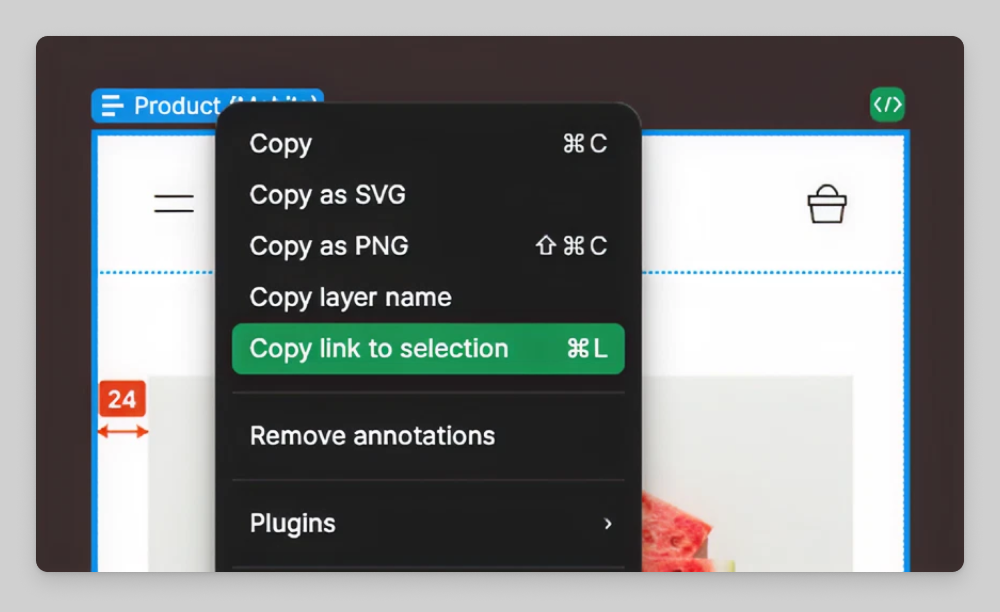
Your client won't open the link directly. Instead, it extracts the node ID the MCP server needs to identify which object to return information about.
Example: Send UI to Figma
Note: Requires the remote Figma MCP server and a supported client. See Connect the MCP server to your editor.
You send the live UI of your web app or site to Figma through a conversation with your MCP client:
- Prompt your MCP client: "Start a local server for my app and capture the UI in a new Figma file."
- Follow the steps your client provides. Your client will open a browser window or give you a link to follow.
- Use the capture toolbar to capture pages, elements, and states of your web app or site.
- Tell your client when you're finished. Your client will give you a link to the new Figma file.